Your store's look
Themes and saved designs
A theme is a whole store, ready to change: every page, its components, a palette and fonts. There are 50 of them. You can try any of them on your own products before using one, and every design you replace is kept.
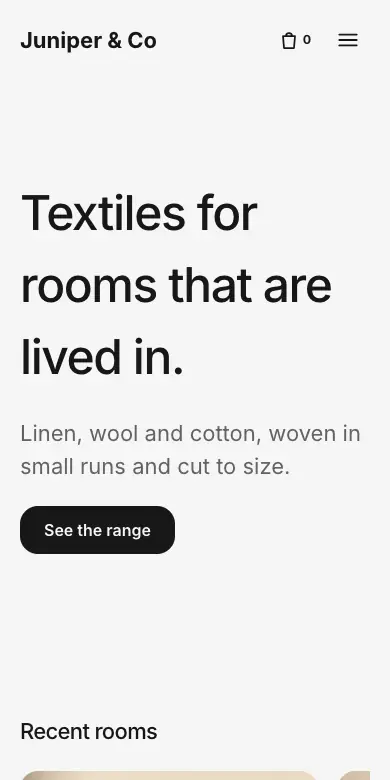 LinenSoft interiors: recent rooms sliding sideways, a moving strip of words, a small studio and four steps.
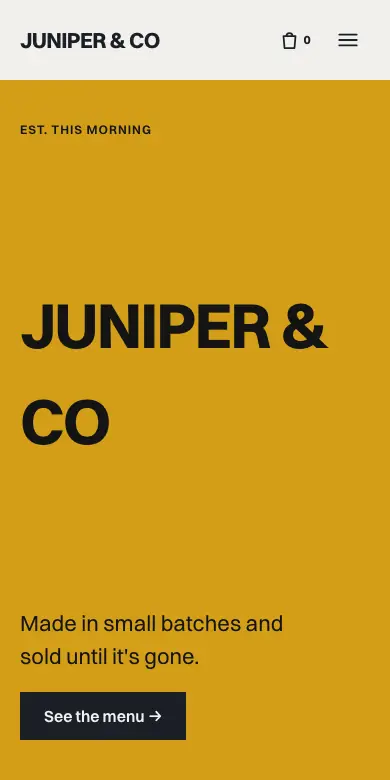 CounterFull-screen panels that scroll sideways, with your range set out like a printed menu.
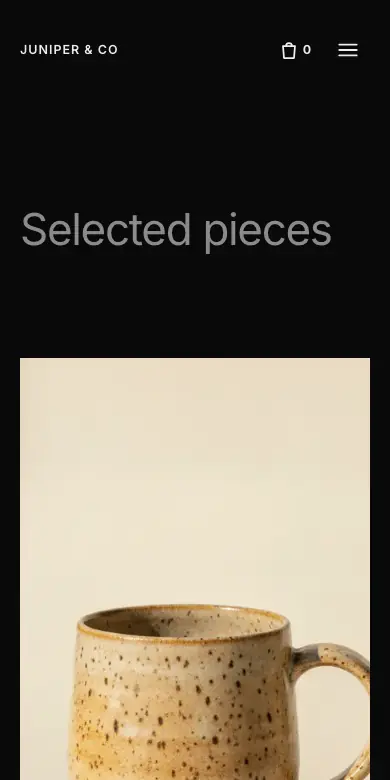 DarkroomA dark gallery: each product a large photograph with a quiet caption.
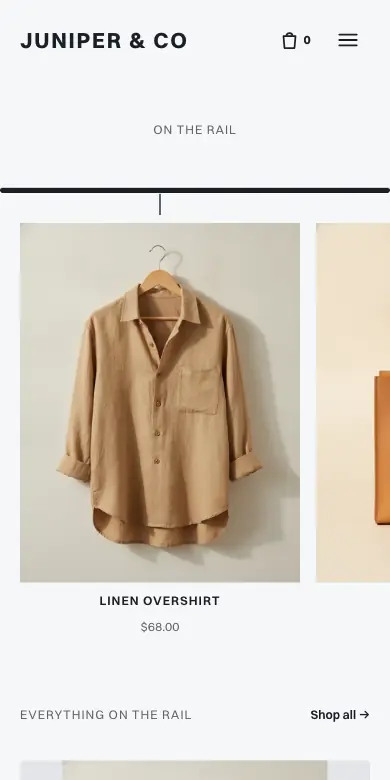 RackClothes hang on a rail; shoppers pull one forward to see it up close.
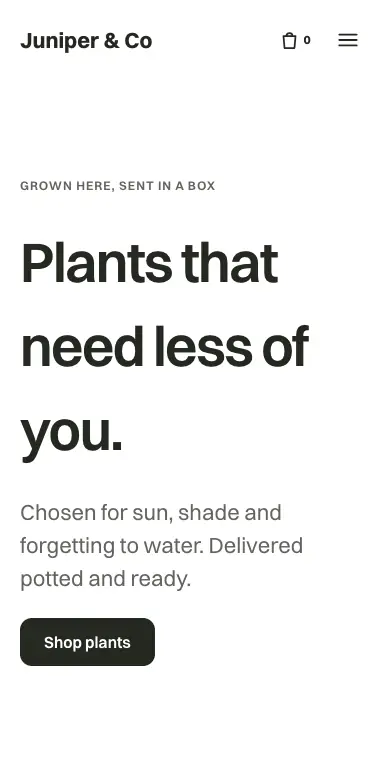 FernGreen and grounded: a plant shop with seasons of care, real reviews and plain answers.
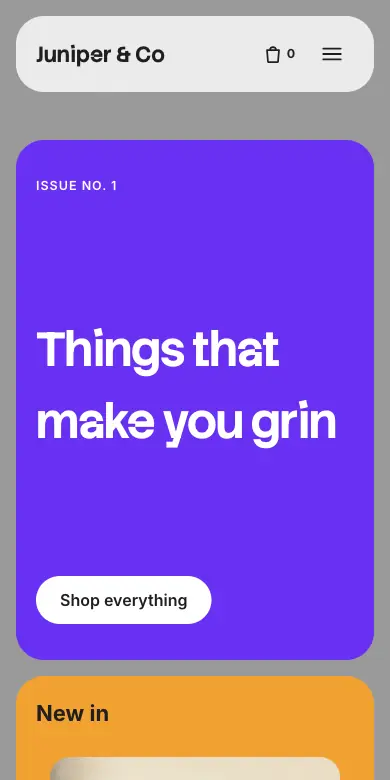 BentoA bento of rounded tiles in loud colours: new in, on sale, and everything else.
Trying one on
- Click Themes at the top of the canvas.
- Find one by name, by kind of shop, or light or dark. Click it to try it: the canvas shows it with your own products, page by page.
- Step through others with the arrows, or Back to my design. Nothing changes until you click Use this theme.
Saved designs
- Kept for you
- Using a theme keeps your current design first, under Saved designs, unless it's a theme exactly as it came.
- Save a copy
- Save the design as it is now, under a name like Summer sale, to come back to.
- Use this design
- Put a saved design back on. The one it replaces is kept too.
- Rename, Remove
- Tidy the list from each design's menu.
Good to know
- A theme changes the design, never your products, orders or settings.
- Components you made yourself stay in your Library when you change theme.