Moving and reacting
Click actions
Anything can do something when it's clicked or tapped: open a drawer, step through a list, add to cart, flip a switch. A button with a link simply follows it.
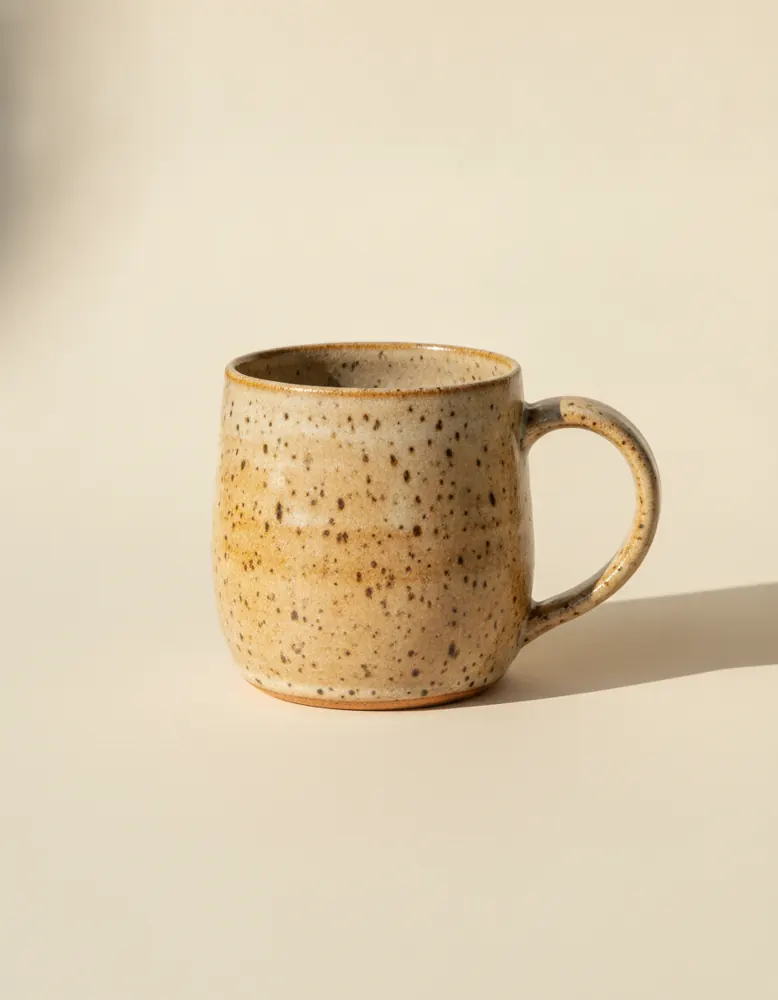
Stoneware Mug
$24.00
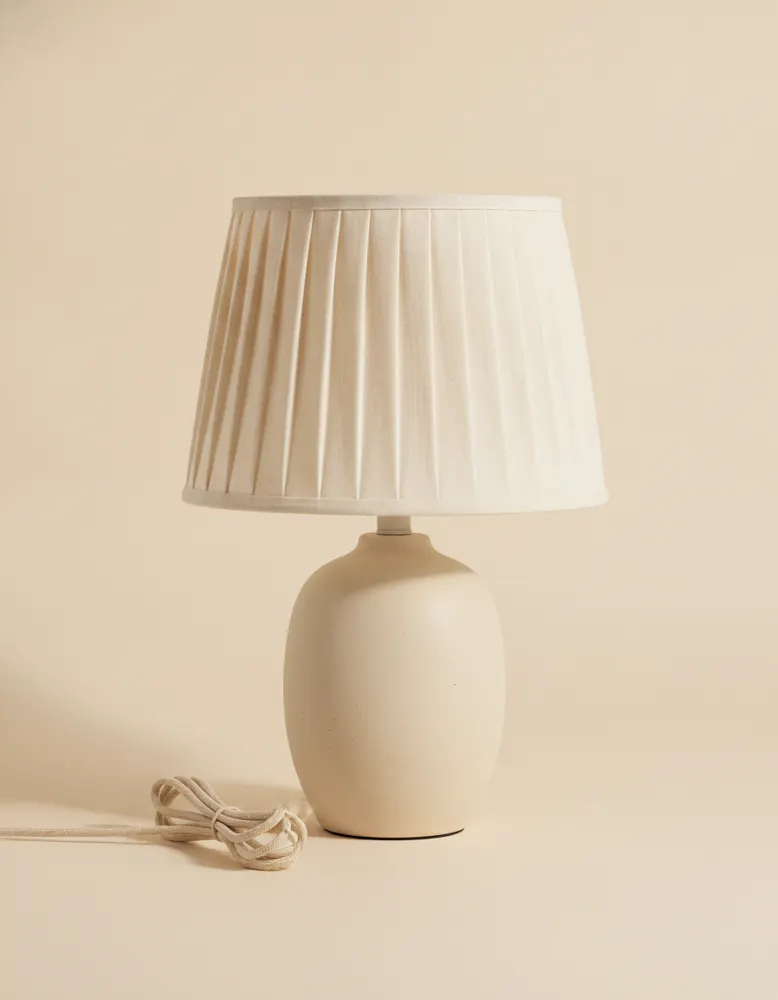
Pleated Table Lamp
$96.00

Linen Cushion
$38.00
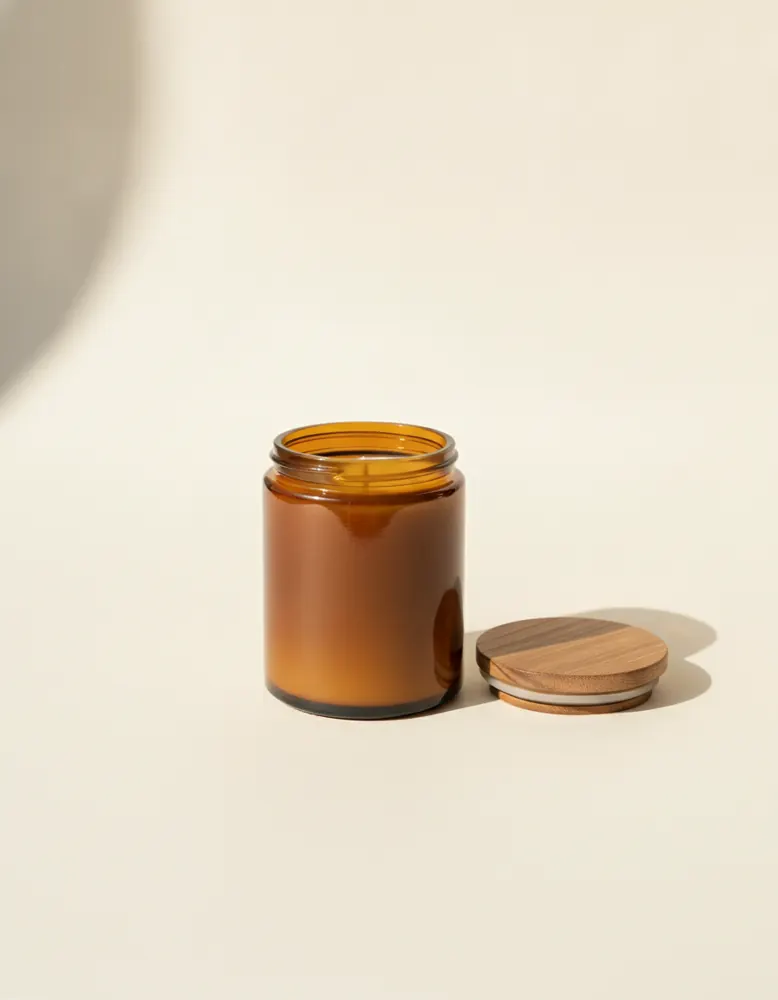
Soy Candle
$28.00
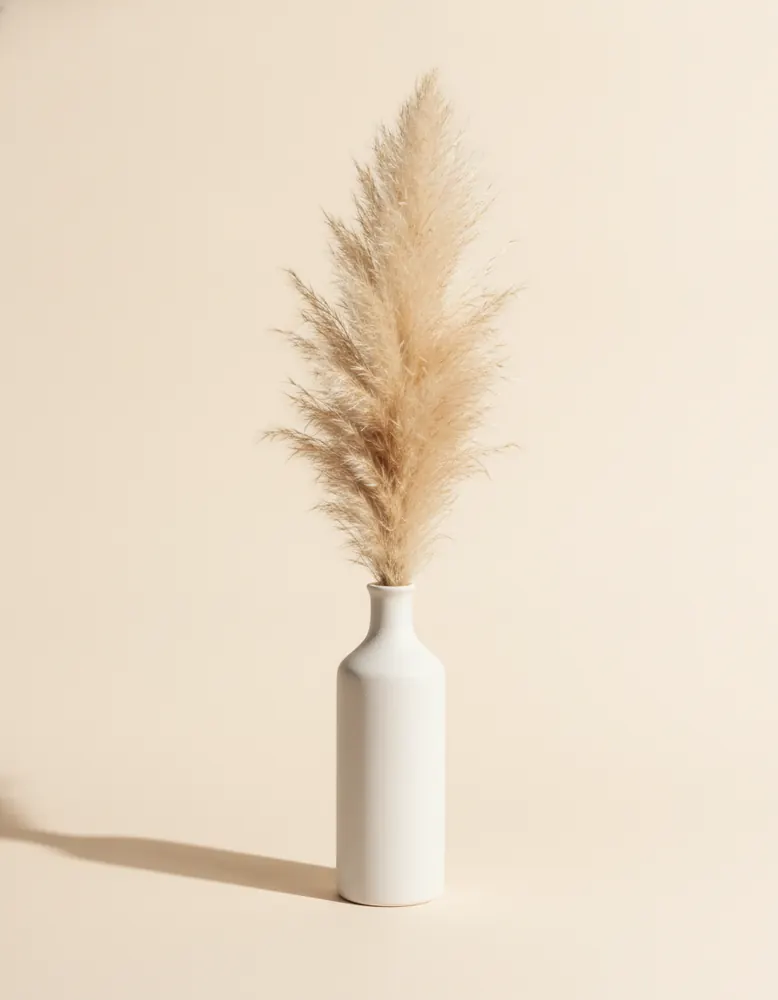
Ceramic Vase
$42.00
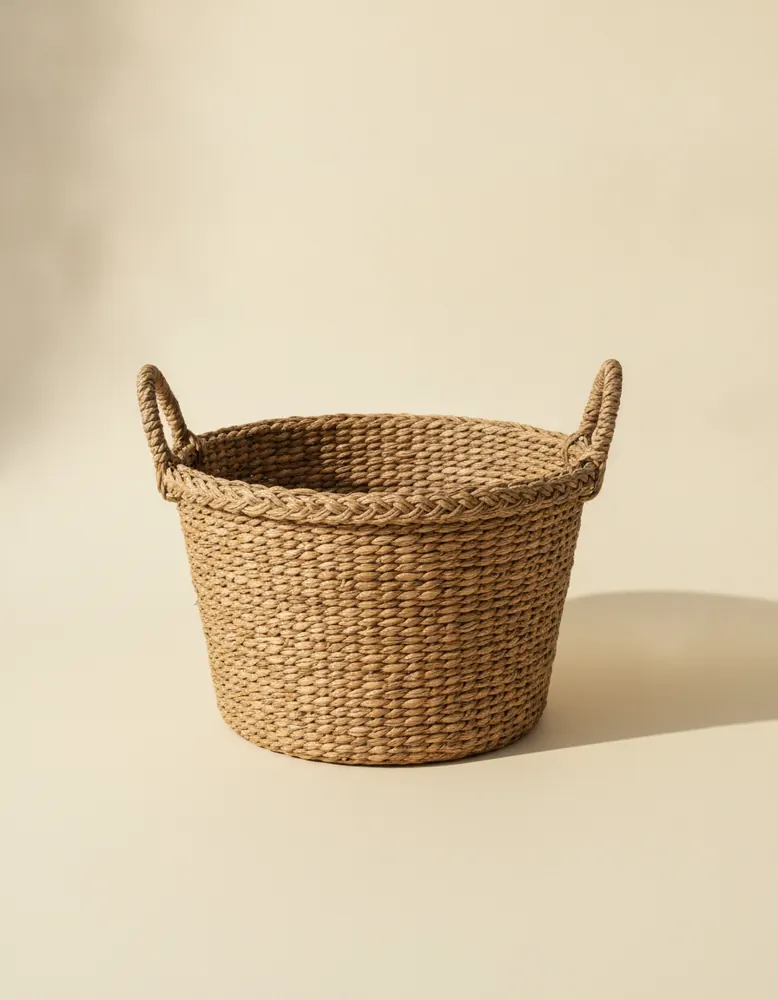
Rattan Basket
$34.00
How to set one
- Select the button, text or box.
- In its Behaviour tab, pick under When clicked.
What a click can do
- Follow its link
- For buttons and links with somewhere to go.
- Open “…”
- Open a drawer or pop-up on the page. See Drawers and pop-ups.
- Close the layer
- For the Close button inside a drawer or pop-up.
- Next item, Previous item
- Step through a list's current item: a gallery, a close-up.
- Next in carousel, Previous in carousel
- Arrows beside a carousel.
- Show all
- Clear the search and filters on a list.
- Show more
- Show a list's next page, for lists shown a page at a time.
- Set a switch…
- Flip a switch, so parts that wait for it show or hide. See Switches.
- Add to cart
- Add the product it can read. See The cart.
- One more, One fewer, Remove it
- On a line in the cart.
Clicks on list items
A list decides what a click on one of its items does, under When one is clicked in its Behaviour tab: open the item's page, make it the current item, open a drawer with it, or narrow another list. See Lists.
Recipes that use it
- TabsDescription, Delivery and Returns, each with its own text, and only one showing at a time. Buttons set a switch, and each text shows for one value.
- Quick viewClick a product and it opens in a pop-up over the page: a bigger photo, the price and Add to cart, without leaving the list.
- Phone menuOn wide screens the links sit in the header. On phones they fold into a menu button that slides a drawer in from the side.
- TestimonialsWhat your customers say, one quote at a time, moving on by itself every few seconds and stopping while someone reads.