Showing your products
Search and sort
A search box narrows a list as the shopper types. A sort menu puts it in another order. Filter chips narrow it to one collection. All three work on the shopper's screen straight away, with no waiting for a new page.
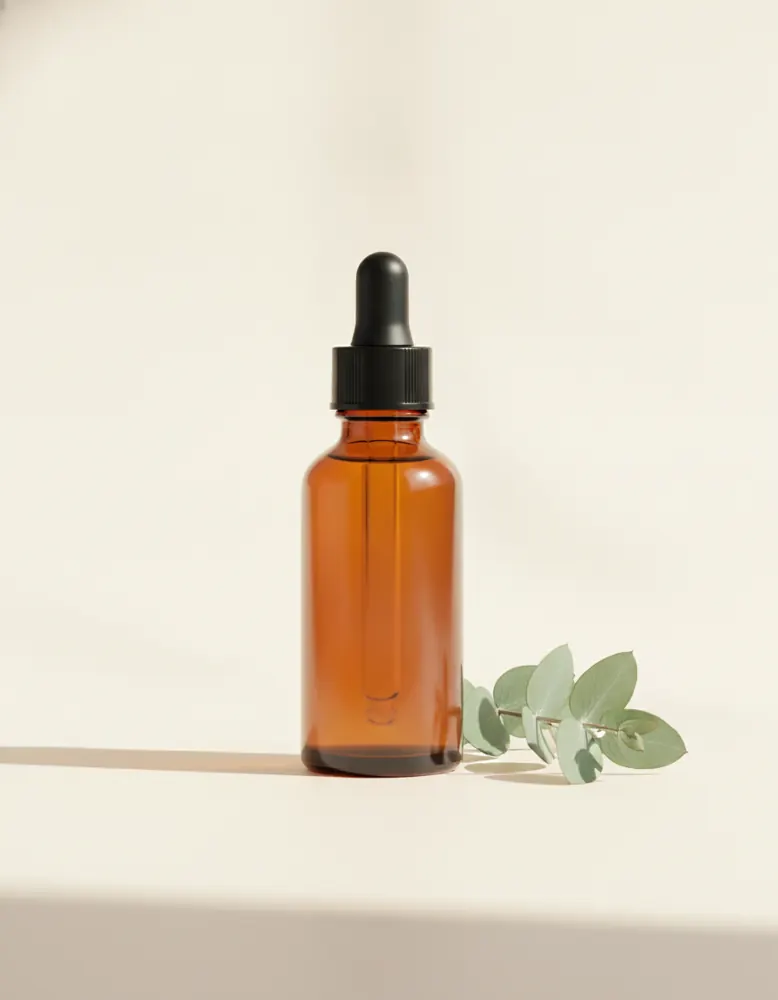
Daily Glow Serum
$38.00
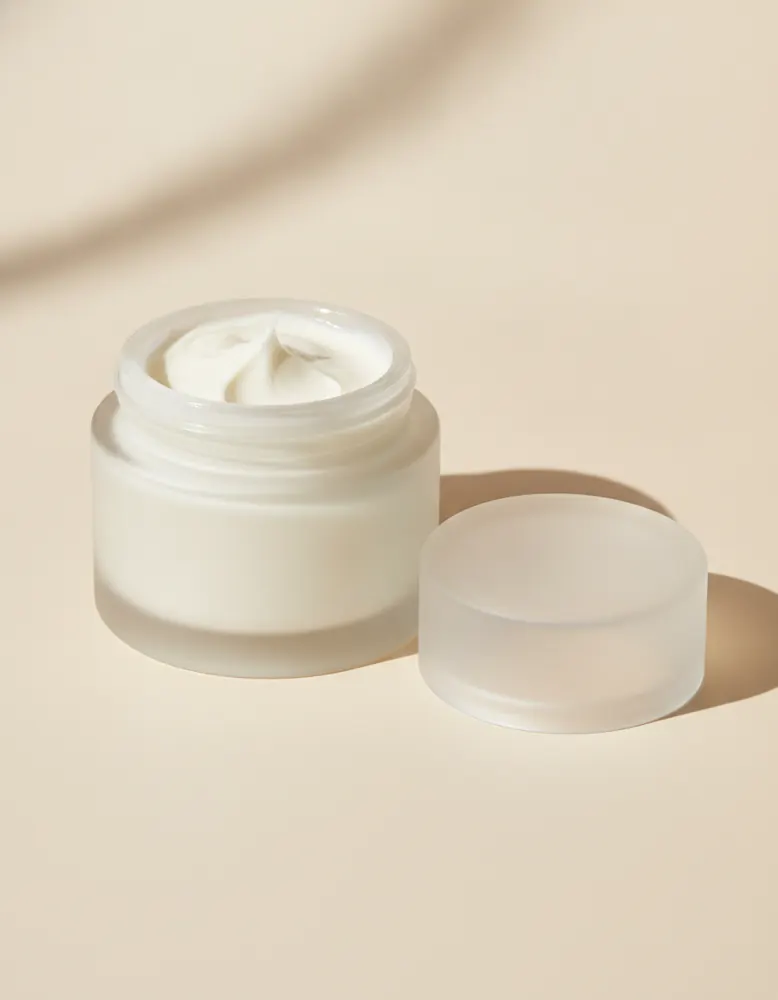
Rich Night Cream
$44.00
Sale
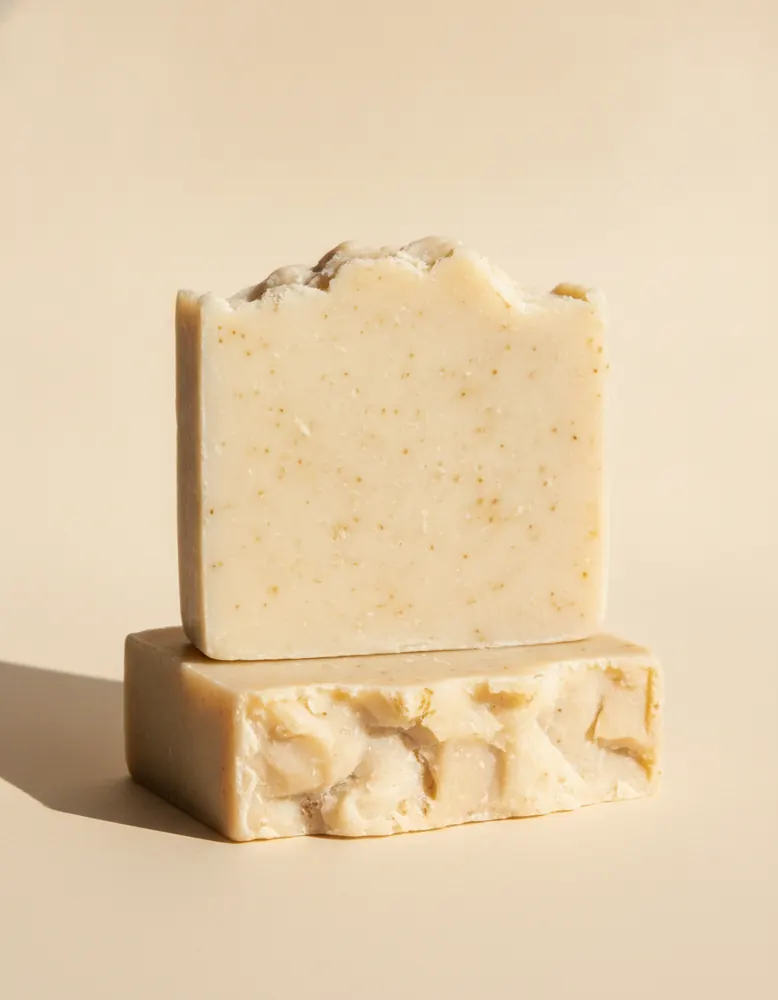
Shea Butter Soap (2)
$14.00
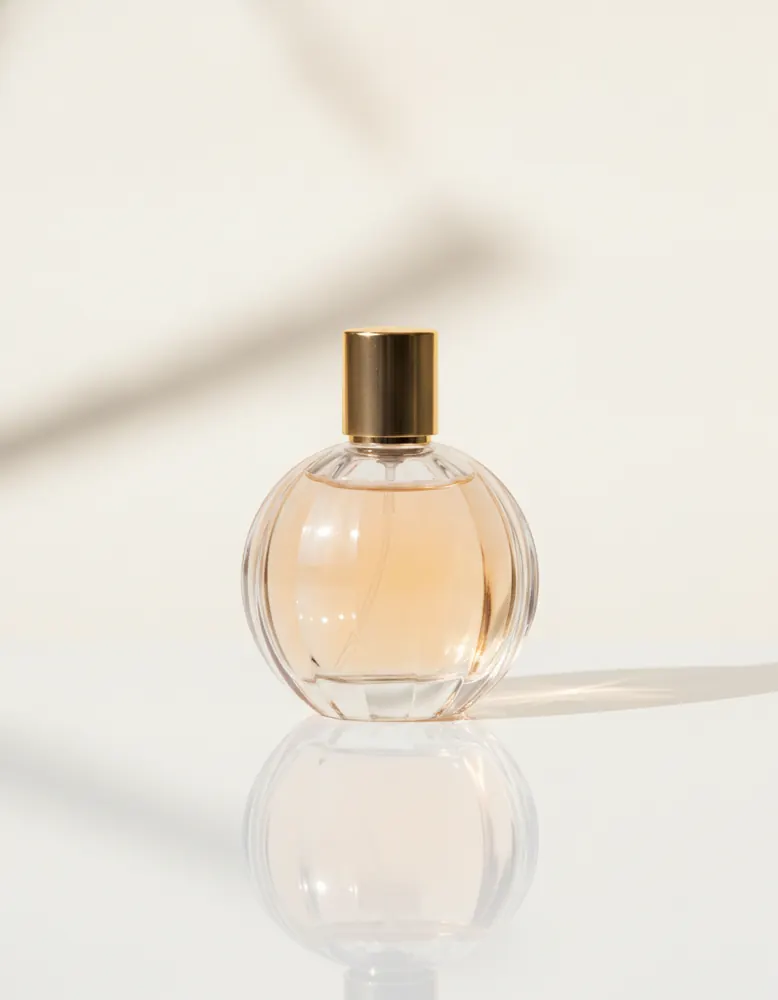
Eau de Parfum
$85.00
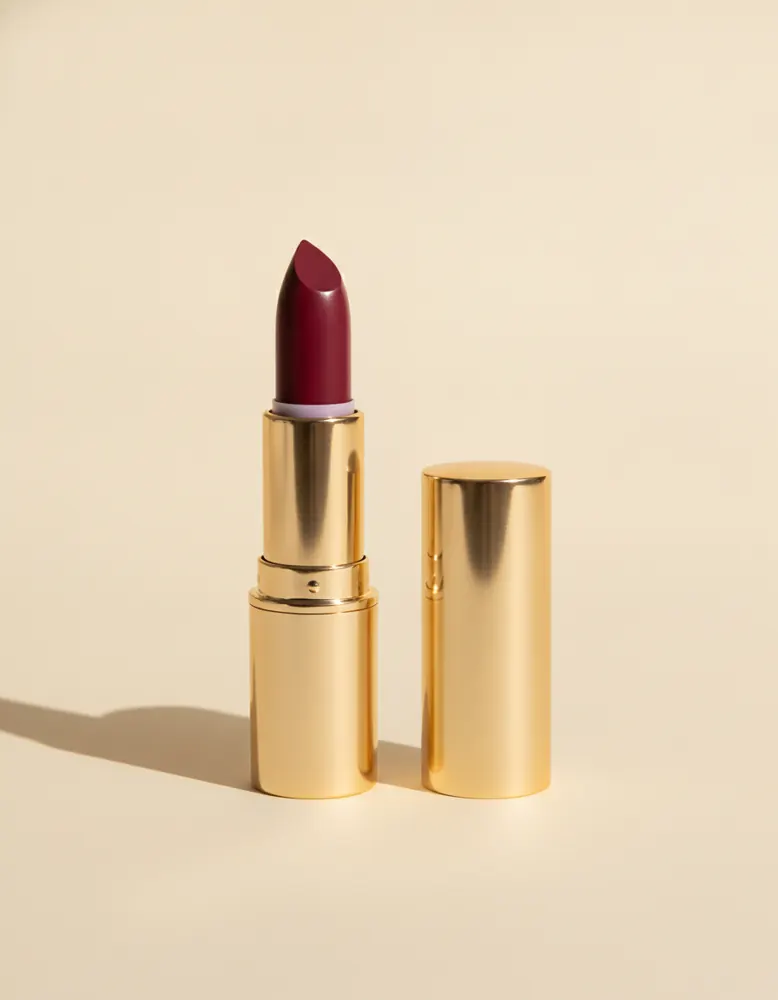
Satin Lipstick
$22.00
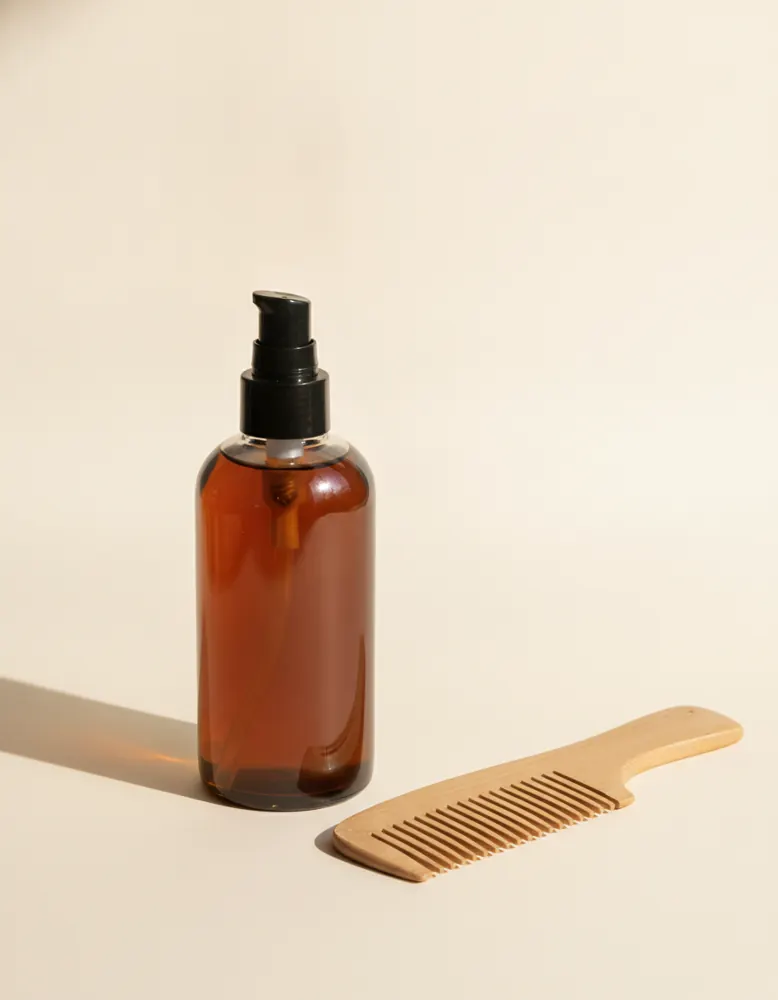
Nourishing Hair Oil
$26.00
A search box
- Draw a box where the search should go, and choose ⋯ › Turn into › Search box.
- In its Design tab, under Narrows down, pick the list it searches.
- Change the words shoppers see before they type under its text.
It matches names, types, tags and collections. When nothing matches, the list says so.
A sort menu
- Draw a box and choose ⋯ › Turn into › Sort menu.
- Under Puts in order, pick the list.
Its choices fit what the list holds: newest, price low to high and high to low, and A to Z for products.
Filter chips
- Make a small chip that shows a name (see Reading data) and make it a component.
- Add a list of Collections (or Tags) that repeats the chip.
- In that list's Behaviour tab, set When one is clicked to Narrow … to what belongs to it, and pick the product list.
- Give the chip a Chosen look under Style, so shoppers see which one is on.
Good to know
- Lists shown a page at a time
- Search, filters and sort cover the whole list, not just the page that's showing.
- Links that land narrowed
- An address ending ?q=linen opens the page already searched; ?collection=home already filtered. Handy for links in emails.
- Several on one page
- Each search box, sort menu and filter list works on the list you pick for it.